
Once you've chosen your scenario, a preparation screen lets you set up your equipment before you enter the conversation. The goal: no bad surprises once you've started.
Allowing your mic and camera
The first time, your browser asks for permission to access your mic (and your camera if video is enabled). Accept: without this permission, the conversation cannot start.
Setting up your devices
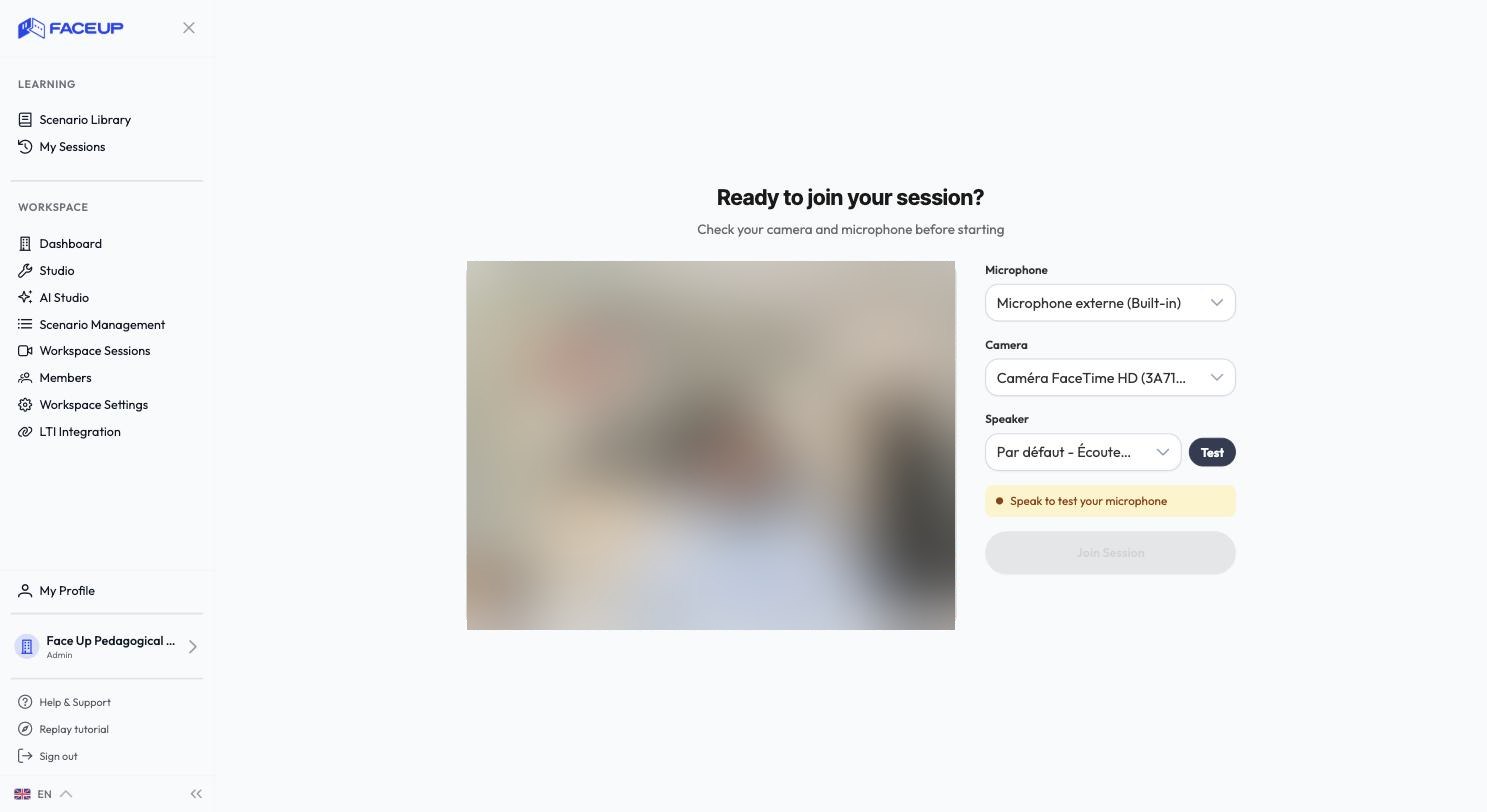
On the preparation screen, you can:
- choose your mic, camera and speaker from the dropdown menus;
- check your mic level with the indicator that reacts when you speak;
- test the sound to confirm you can hear properly;
- see your camera preview, if video is enabled.
Entering the conversation
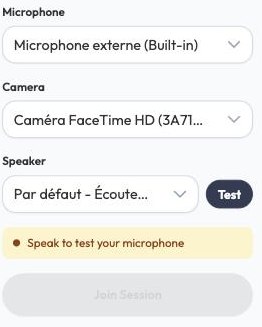
As soon as your mic is recognized, the button to join the session becomes active. Click it to start the exchange.
If your organization doesn't use video, the simulation runs in audio only, and the preparation screen then shows only the sound settings. Your equipment preferences are remembered for next time.
Mic or camera giving you trouble? See Technical troubleshooting (mic and camera).