
A Face Up simulation is a direct conversation with an AI-powered counterpart, so you can practice a professional situation before getting a personalized debrief.
Before you begin
For a comfortable simulation, three things are enough:
- A recent computer or phone with an up-to-date browser
- A working mic (headset recommended)
- A quiet space to speak without interruption
A camera may be required depending on your organization's setup. In that case, make sure you have good lighting.
Step 1 — Choose a scenario
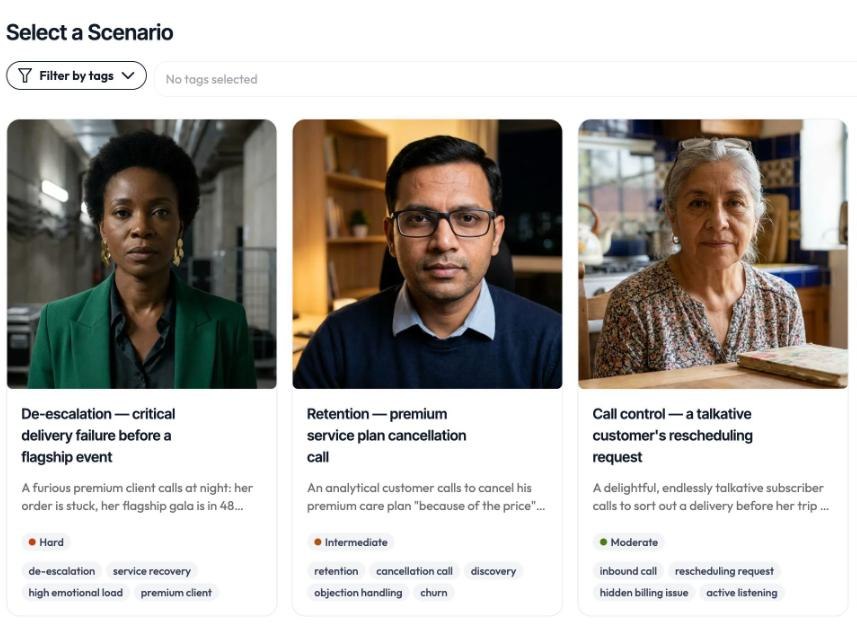
When you open Face Up, you land on your scenario library. Each scenario is a professional situation to work on (an interview, a client exchange, a management check-in, and so on). Browse the list and launch the one you want.
Step 2 — Set your mic and camera
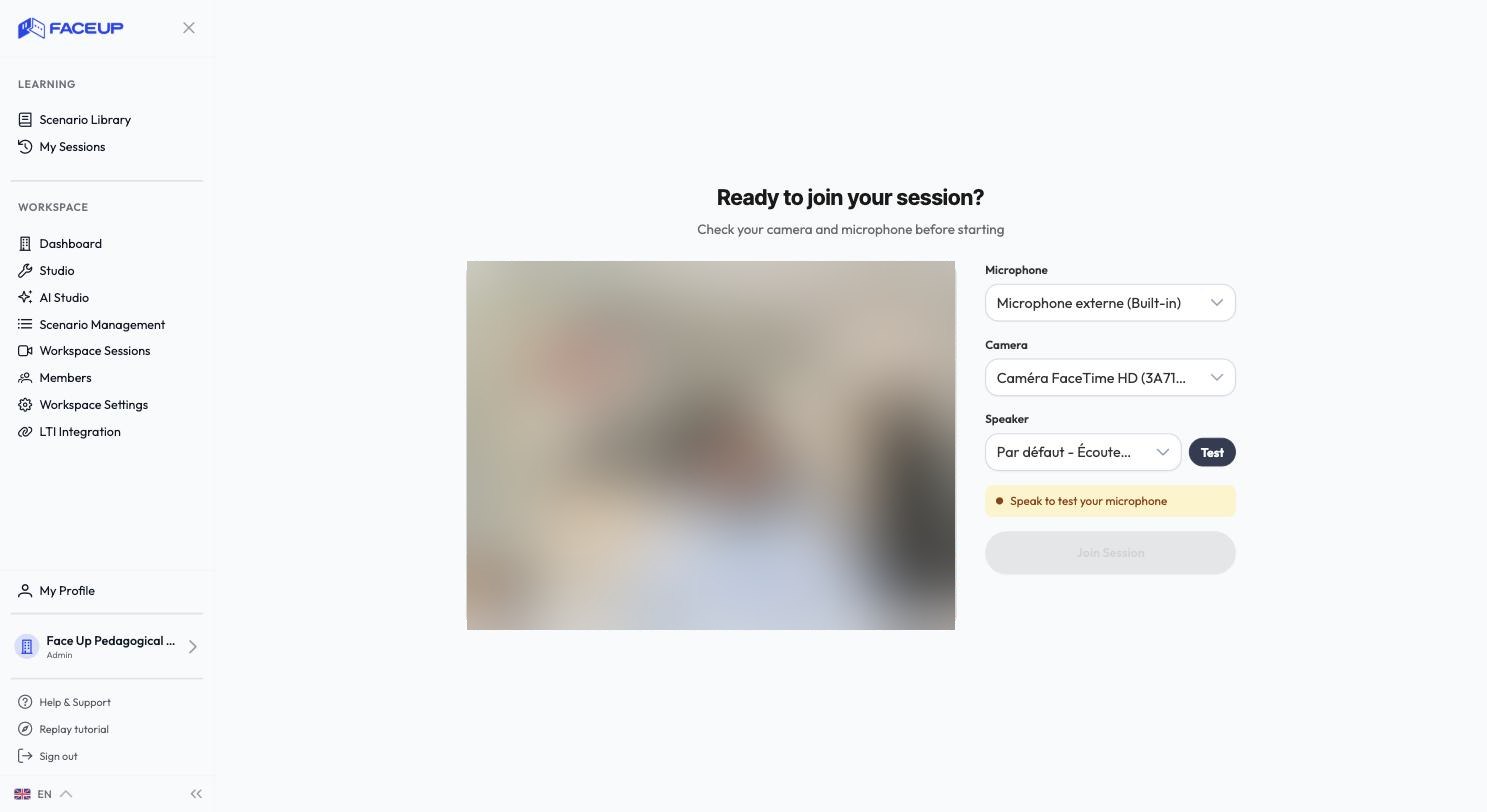
The preparation screen lets you check your setup:
- Select your mic, camera and speaker
- Check audio capture with the level indicator
- Test your speaker
- See the camera preview if it's enabled
The connect button turns on once your mic is ready. Your preferences are saved.
Step 3 — Live the conversation
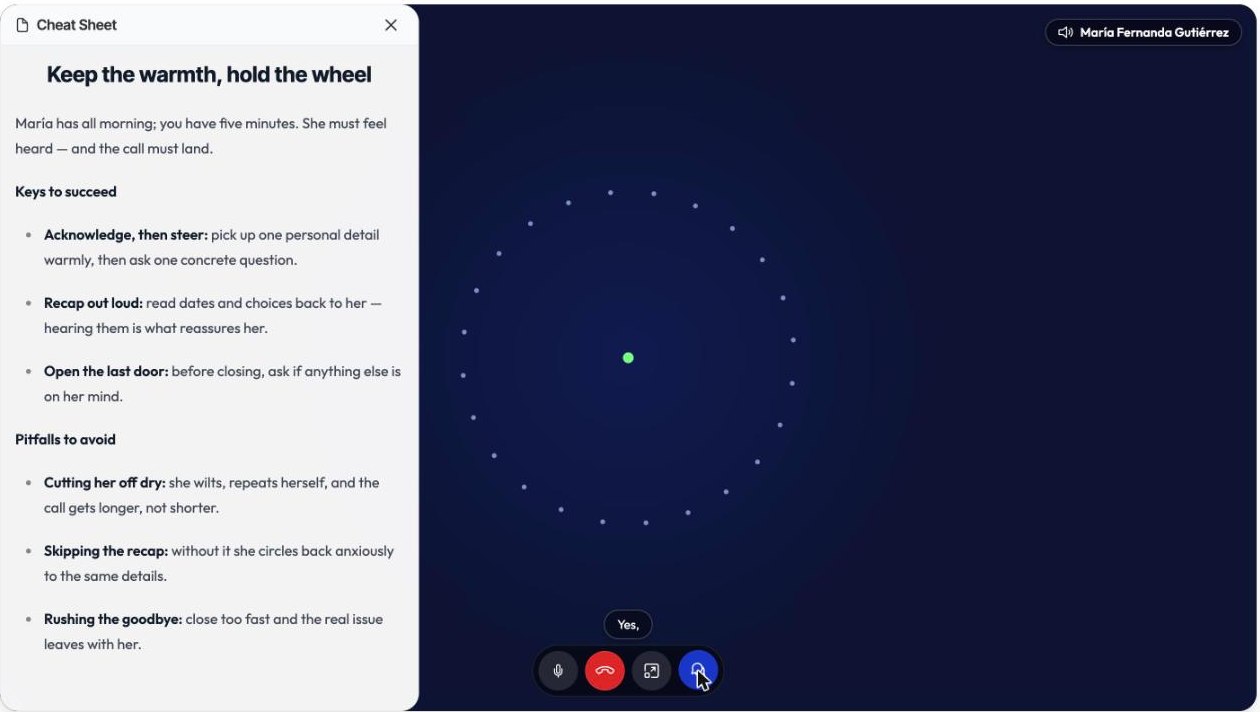
Speak naturally with your counterpart. The interface shows a timer, optional subtitles and a cheat sheet if one is available.
Step 4 — Your self-assessment and your debrief
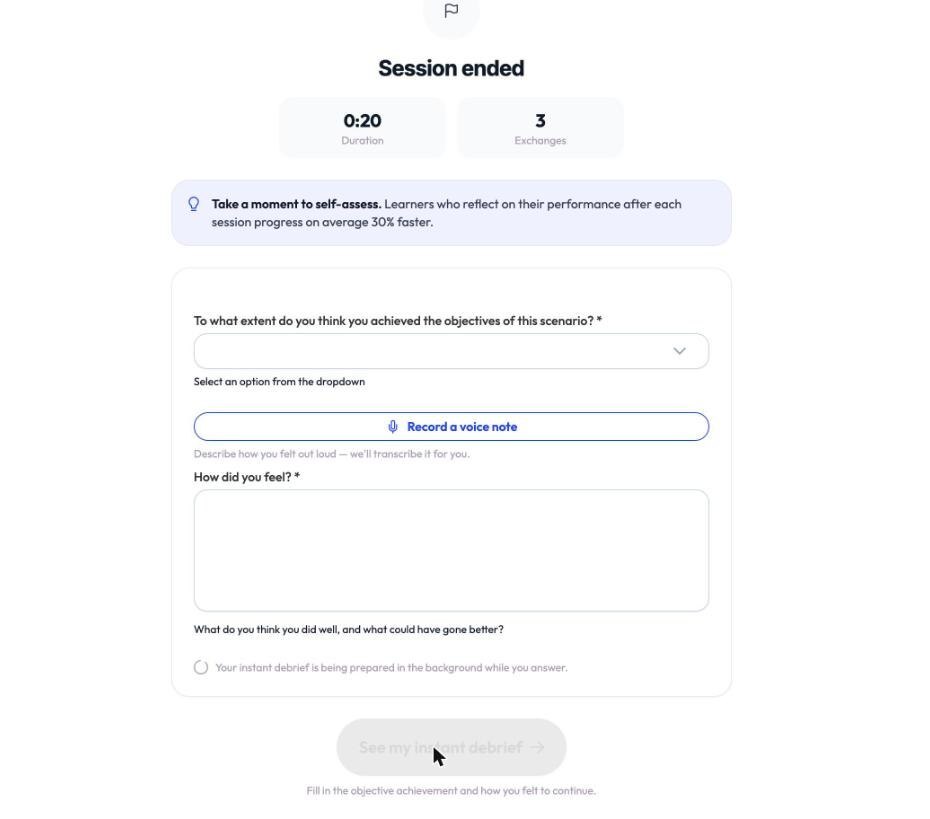
A short self-assessment follows the simulation, then an automatic debrief analyzes your strengths and areas to improve.
Find your simulation again
All your simulations stay available in your session history. See Check your setup before you start and Read your debrief.