
{{ js_integration_head_start() }} {{ head_elements() }} {{ head_css() }} {{ head_js() }} {{ js_integration_head() }} {{ include_default_custom_css(content.include_default_custom_css, template_meta.include_default_custom_css, domain_settings.include_default_custom_css) }} {{ include_attached_css(content_group.attached_stylesheets or domain_settings.attached_stylesheets, content.enable_domain_stylesheets, template_meta.enable_domain_stylesheets, theme_meta.enable_domain_stylesheets, domain_settings.enable_domain_stylesheets) }} {{ include_attached_css(template_meta.attached_stylesheets, content.enable_layout_stylesheets) }} {{ include_attached_css(content.attached_stylesheets) }} {{ require_attached_js(template_meta.attached_js) }} {% if not suppress_hubdb_hreflang %} {% endif %}
Skip to content
English
  • There are no suggestions because the search field is empty.

The Face Up library: ready-to-use scenarios

On top of your own scenarios, your group can display the Face Up library: a set of ready-to-use scenarios, made available to everyone. You choose whether or not to show them to your learners.
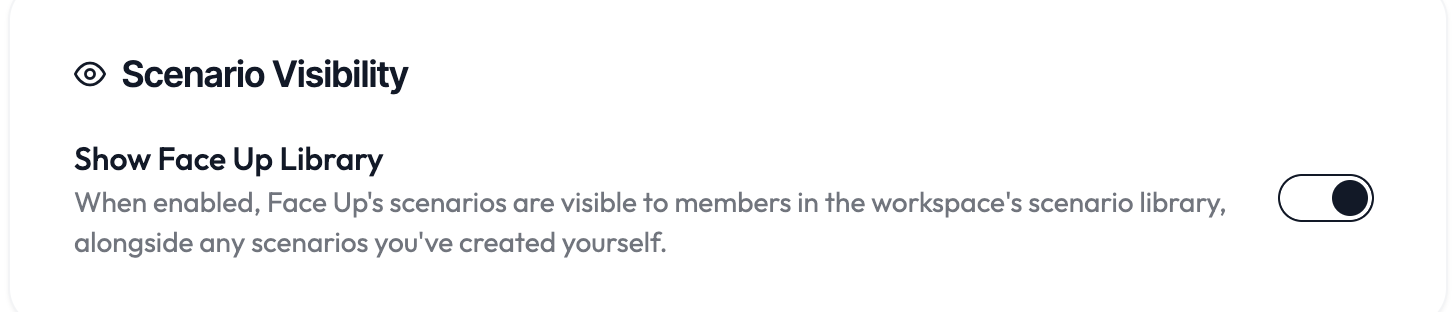
The Show Face Up Library option in the workspace settings

Turn the library on or off

In the group settings, a scenario visibility setting lets you display the Face Up library. When it's on, your learners see the Face Up scenarios in addition to the ones you've created. When it's off, they only see your group's scenarios.

When to use it

Display the library to get started quickly, with situations already built. Hide it if you prefer a fully in-house catalog, entirely tailored to your roles. The change takes effect immediately for your members.

This setting is on the admin side. A personal space always sees the Face Up library.