
The Studio lets you compose your own scenarios, as close as possible to your real-world situations. It works like a step-by-step assistant. Trainers and admins have access to it.
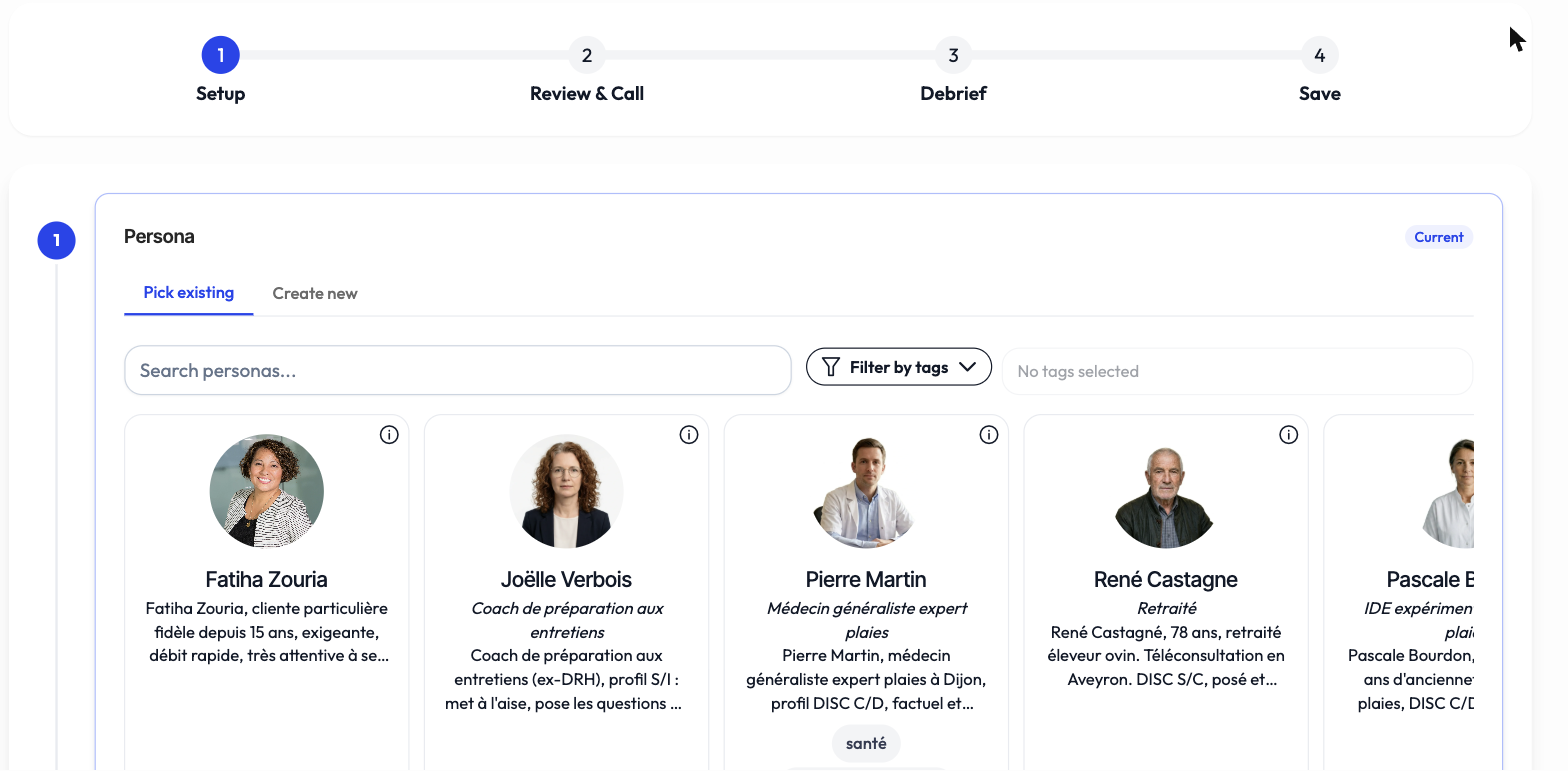
Composing the counterpart
You start with the counterpart (the character the AI will play): choose an existing one, or create it by setting its identity, its sector, its behavioral profile and its voice. This is who your learner will face during the simulation.
Choosing the setting
You then define the setting: the type of place (an office, a shop, a reception desk, phone, video call), the channel of the exchange and the atmosphere. The setting sets the scene for the conversation.
Framing the scenario
You specify the scenario itself: the subject of the conversation (a complaint, a sale, feedback, a course correction), the history of the relationship, the learning objectives (up to four) and the difficulty level, adjustable from 1 to 5.
Test, then set up the debrief
A review step lets you launch a test call to check the result. Finally, you configure the debrief: the immediate feedback, and the later feedback if you have enabled session recording.
Save
A final view recaps the whole configuration, section by section, with a visual marker of what's complete. You save, and the scenario is available in your group.
A simulation's length is set at the scenario level: from 1 to 10 minutes, 5 minutes by default.