
{{ js_integration_head_start() }} {{ head_elements() }} {{ head_css() }} {{ head_js() }} {{ js_integration_head() }} {{ include_default_custom_css(content.include_default_custom_css, template_meta.include_default_custom_css, domain_settings.include_default_custom_css) }} {{ include_attached_css(content_group.attached_stylesheets or domain_settings.attached_stylesheets, content.enable_domain_stylesheets, template_meta.enable_domain_stylesheets, theme_meta.enable_domain_stylesheets, domain_settings.enable_domain_stylesheets) }} {{ include_attached_css(template_meta.attached_stylesheets, content.enable_layout_stylesheets) }} {{ include_attached_css(content.attached_stylesheets) }} {{ require_attached_js(template_meta.attached_js) }} {% if not suppress_hubdb_hreflang %} {% endif %}
Skip to content
English
  • There are no suggestions because the search field is empty.

Make a scenario available to your group

When you create a scenario with the Studio, it's automatically attached to your active group. Your learners find it in their library, alongside the scenarios already available.
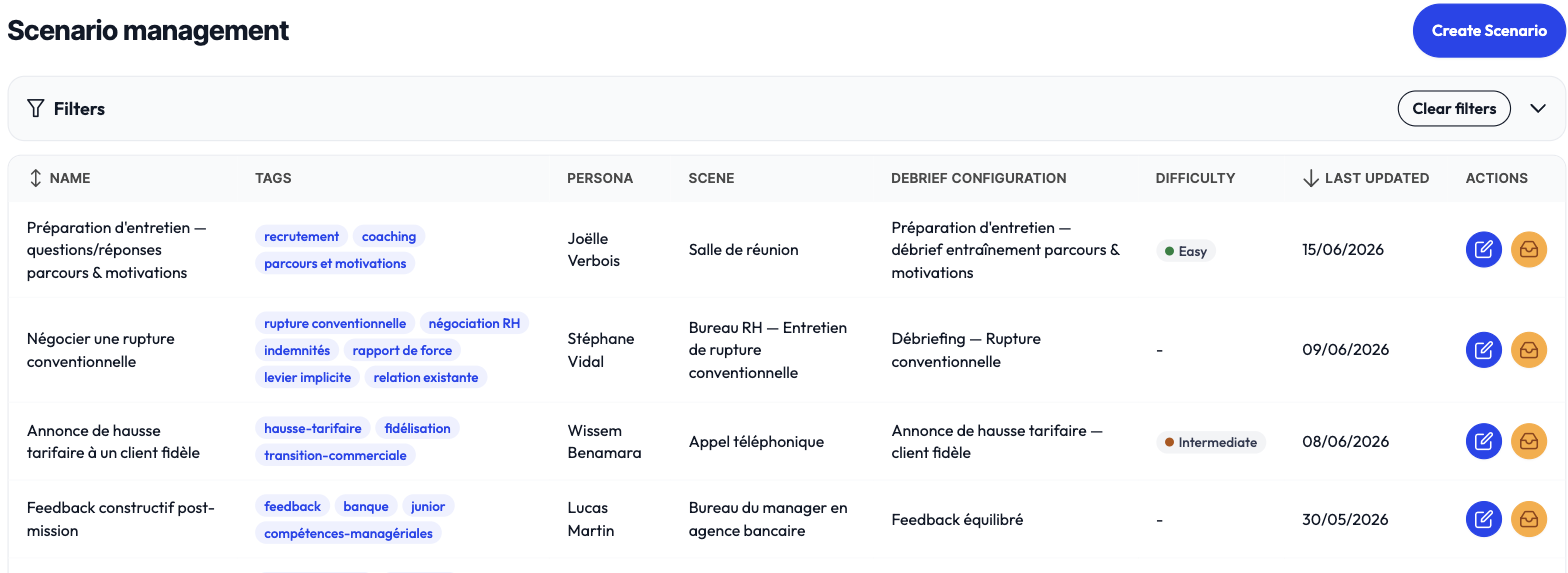
Scenario management for your workspace

A scenario belongs to your group

A scenario you compose is specific to your group: only that group's members can see it. Another group's scenarios are never visible to you, and vice versa.

Adjusting how it's displayed

From your group's scenarios page, you can tweak a scenario's presentation without touching its core: its name, its description, its tags, its image. The difficulty level can be filled in once if it wasn't set yet; once defined, it's shown read-only.

A shared resource (a counterpart or a setting from the common library, or from another group) appears read-only. If you edit a resource you own that is used by several scenarios, the change applies to all of them: a confirmation reminds you.